
How to Change Print Size: The Complete Guide to Scaling Printables for Any Paper
Whether you're printing planner inserts, resizing a document designed for A4 onto US Letter paper, or scaling a printable down to fit a smaller format, your printer's scale setting is the simplest and most reliable way to do it. This guide walks you through exactly how it works — on every platform.
What Is Print Scaling?
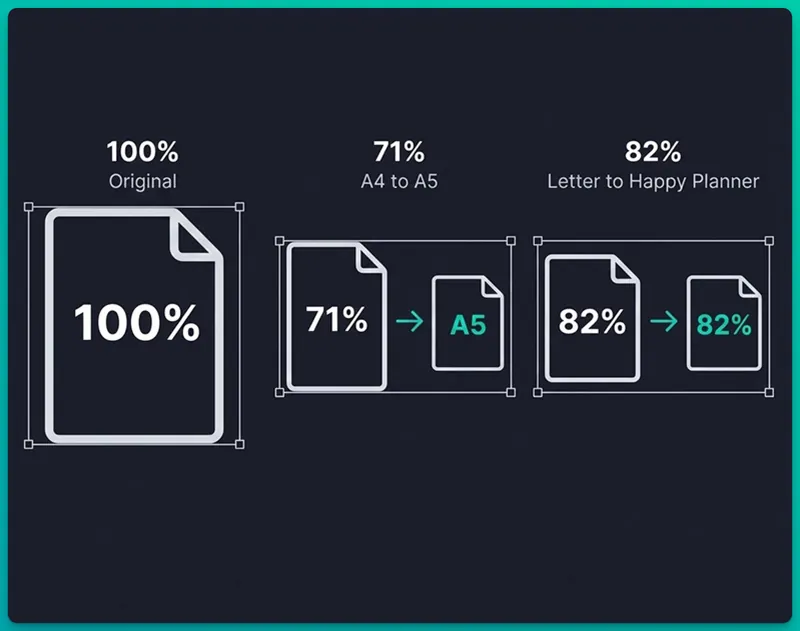
Print scaling is a built-in feature of every modern printer driver. It resizes your entire document by a percentage before sending it to the printer. A scale of 100% prints at the original size. Lower values shrink the content; higher values enlarge it.
This is different from “Fit to Page,” which automatically calculates the percentage for you but doesn't tell you what that number is. With a custom scale, you control the exact size — which is essential when you need a precise fit, like printing onto planner pages or a different paper standard.
When Do You Need to Change Print Size?
You'll need to change the print scale whenever your document was designed for a different paper size than what's loaded in your printer. Common scenarios include:
- Printing US Letter printables onto Happy Planner Classic pages
- Resizing an A4 PDF for US Letter paper (or vice versa)
- Printing A4 content down to A5 for a notebook
- Fitting a full-page design onto a smaller planner format like Filofax Personal
- Scaling up a small design to fill a larger sheet
In every case, you just need one number: the scale percentage. You can calculate it yourself by dividing the target width by the source width, or use the PaperOrb Print Scale Calculator to get it instantly.
How to Change Print Scale on Mac
- Open your document and press ⌘P (Cmd + P) to open the Print dialog.
- Click "Show Details" at the bottom of the dialog to expand all options.
- Find the "Scale" field — it's in the paper handling or layout section, depending on your app.
- Change the value from 100% to your target percentage (e.g., 82% for Letter → Happy Planner Classic).
- Verify the preview on the left updates to show the scaled content.
- Click Print.
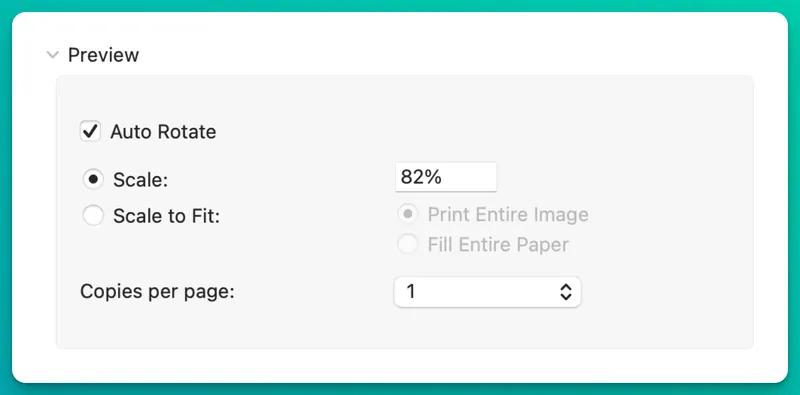
Tip: If you don't see the Scale option, make sure “Show Details” is expanded. Some apps also put scaling under File → Page Setup instead.
How to Change Print Scale on Windows
- Open your document and press Ctrl + P to open the Print dialog.
- Click "Printer Properties" or "Preferences" (the exact label depends on your app).
- Look for "Page Sizing & Handling," "Scale," or "Custom Scale" in the layout or advanced tab.
- Enter your target percentage (e.g., 94% for A4 → Letter).
- Click OK, then Print.
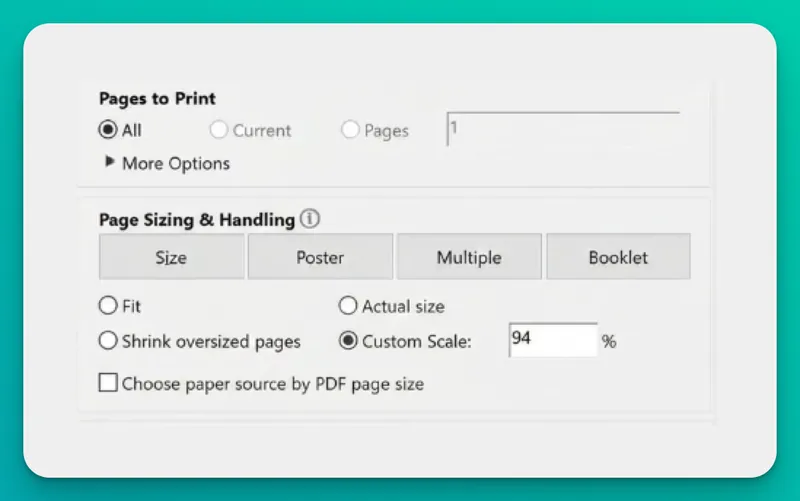
Note: If printing from a browser (Chrome, Edge), the scale option is usually under “More settings” in the print preview. Look for “Scale” and select “Custom.”
How to Scale in Adobe Acrobat and PDF Readers
PDF readers give you the most control over print scaling, since PDFs preserve exact dimensions.
Adobe Acrobat Reader
- Open the PDF and go to File → Print.
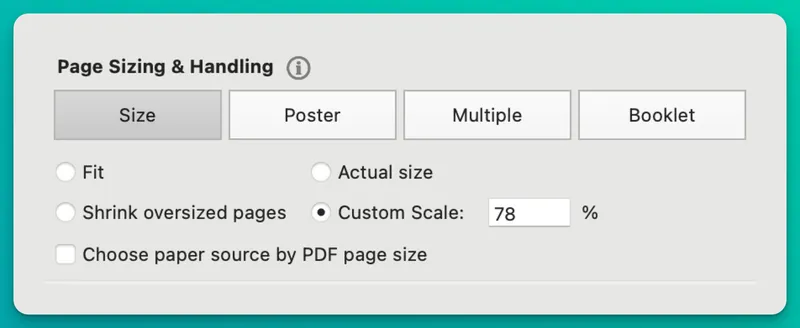
- Under "Page Sizing & Handling," select "Custom Scale."
- Enter the percentage (e.g., 78% for A4 → Happy Planner Classic).
- Check the preview to confirm the scaled area.
- Click Print.
Other PDF Readers (Preview, Foxit, Chrome)
macOS Preview: The scale field is in the print dialog under “Show Details.” Enter your percentage directly.
Foxit Reader: Under Print, select “Custom Scale” in the page handling section.
Chrome / Edge (built-in viewer): Click “More settings” in the print preview, set Scale to “Custom,” and enter the percentage.
Common Print Scale Percentages
Here are the most frequently needed scale percentages. These are calculated using a “Scale to Fit” method — the document is proportionally resized to fit inside the target paper without any content being cropped.
Need a scale percentage not listed here? Use the PaperOrb Print Scale Calculator to calculate the exact percentage for any source and target paper size combination.
How to Print on Happy Planner Sizes
Happy Planners are one of the most popular reasons people need print scaling. Most printables and downloads are designed for US Letter (8.5 × 11 in) or A4 (210 × 297 mm) paper, but Happy Planners use non-standard sizes. Here's every Happy Planner format and the scale you need:
| Planner | Size | From Letter | From A4 |
|---|---|---|---|
| Happy Planner Classic | 7 × 9.25 in | 82% | 78% |
| Happy Planner Mini | 4.5 × 7 in | 59% | 55% |
| Happy Planner Big | 8.5 × 11 in | 100% | 94% |
| Happy Planner Skinny Classic | 4.75 × 9.25 in | 56% | 53% |
| Erin Condren LifePlanner | 7 × 9 in | 82% | 78% |
| Filofax A5 | 5.83 × 8.27 in | 68% | 66% |
| Filofax Personal | 3.74 × 6.73 in | 49% | 44% |
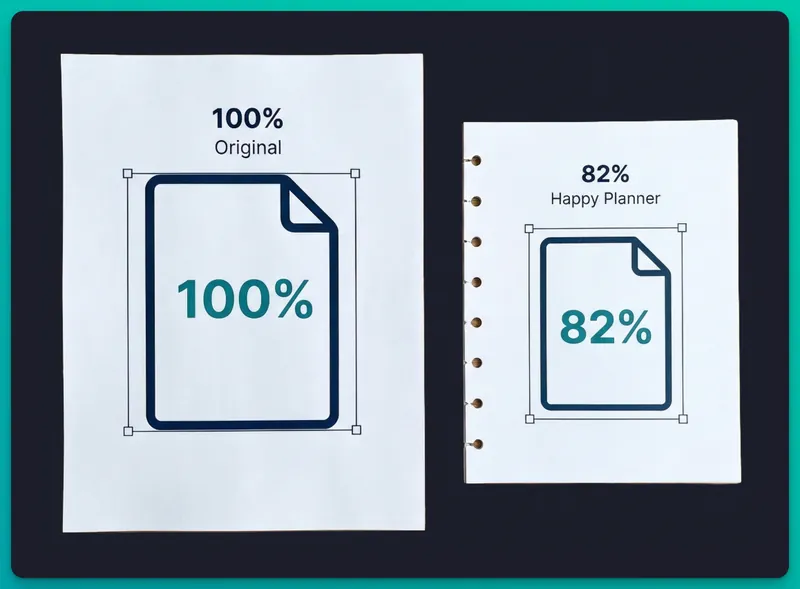
How to use these numbers: If you have a printable designed at US Letter size and want to print it for your Happy Planner Classic, open the print dialog, set the scale to 82%, and print onto US Letter paper. Then trim to size or punch for your planner rings.
You can also compare any two of these sizes visually using the size comparison tool — for example, see Happy Planner Classic vs US Letter side by side.
Scaling Between A4 and US Letter
A4 and US Letter are the two most common document sizes in the world, and they're frustratingly close — but not identical. A4 is narrower and taller; Letter is wider and shorter.
Most people can print A4 documents on Letter paper (and vice versa) using their printer's “Fit to Page” option — but if you want precise control, use the custom scale values above. This is especially important for templates, forms, and designs where exact dimensions matter.
See the full A4 vs US Letter comparison for a proportional overlay and dimension breakdown.
Print Quality Tips When Scaling
Scaling changes the size of your content, which can affect how it looks on paper. Here's how to get the best results:
- Scaling down (below 100%) almost always looks good. Content becomes denser and sharper.
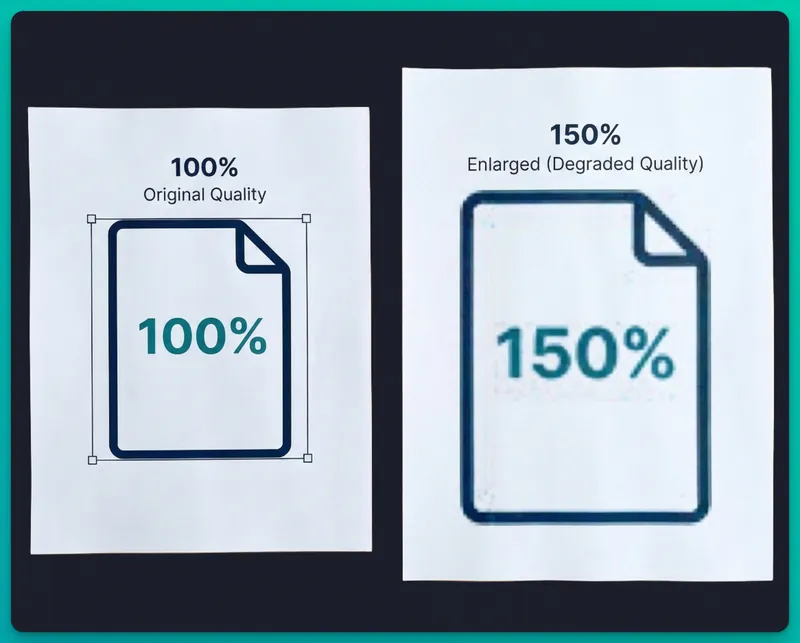
- Scaling up (above 100%) can cause blurriness, especially for raster images. Vector PDFs handle upscaling much better.
- Start with high-resolution files whenever possible — 300 DPI or higher is ideal for print.
- Use “Actual Size” first as a test print to check alignment before committing to a full batch.
- Check “Print in original size” is unchecked — some printers default to ignoring your custom scale.
Calculate Any Scale Percentage Instantly
Don't want to look up tables or do math? The PaperOrb Print Scale Calculator lets you select any source and target paper size and gives you the exact scale percentage to enter in your print dialog. It also shows a visual preview of how the scaled document fits on the target page.
Open the Print Scale Calculator →It includes quick presets for the most common conversions (Letter → Happy Planner, A4 → A5, A4 → Letter) and supports every paper size in the PaperOrb database — over 370 formats.
Frequently Asked Questions
What does "scale" mean in printer settings?
Scale is a percentage that enlarges or shrinks your document before printing. 100% prints at the original size. A value below 100% shrinks the output, while a value above 100% enlarges it.
How do I print A4 on US Letter paper?
Set the print scale to 94%. A4 (210 × 297 mm) is slightly narrower and taller than US Letter (215.9 × 279.4 mm), so 94% shrinks the A4 content to fit within the Letter sheet with small margins.
What scale do I use to print on Happy Planner Classic?
From US Letter, use 82%. From A4, use 78%. These percentages scale standard documents down to the Happy Planner Classic size of 7 × 9.25 inches (177.8 × 234.95 mm).
Can I scale a document up to a larger paper size?
Yes, but scaling above 100% enlarges the content beyond its original resolution. This can cause pixelation or blurry text, especially with images. Vector-based PDFs handle upscaling better than raster images.
Why is my printout cropped or cut off?
Your document is likely larger than the paper in your printer. Open the print dialog and either set "Fit to Page" or enter a custom scale percentage below 100%. You can use the PaperOrb Scale Calculator to find the exact percentage.
Does scaling affect print quality?
Scaling down (below 100%) generally preserves quality since pixels become denser. Scaling up (above 100%) can reduce quality because pixels are stretched. For best results when enlarging, start with a high-resolution source file.
How do I find the right scale percentage for any two paper sizes?
Use the PaperOrb Print Scale Calculator. Select your source and target paper sizes, and it will instantly calculate the exact percentage to enter in your printer dialog.
Summary
Changing print size is as simple as entering a percentage in your printer's scale setting. Whether you're printing planner inserts at 82%, converting between A4 and Letter at 94%, or resizing any document for a non-standard format, the process is the same on every platform: open the print dialog, find the scale option, type the number, and print.
Bookmark the Print Scale Calculator for instant access to the right percentage for any paper size combination.